Gimkit is a fun, fast-paced quiz platform for middle and high school students. Teachers can create or use ready-made quizzes (“Kits”), pick game modes, and share a code so students join on phones or laptops. This guide covers setup, engagement tips, gamification, troubleshooting, and cost-conscious strategies to confidently host your first Gimkit game.
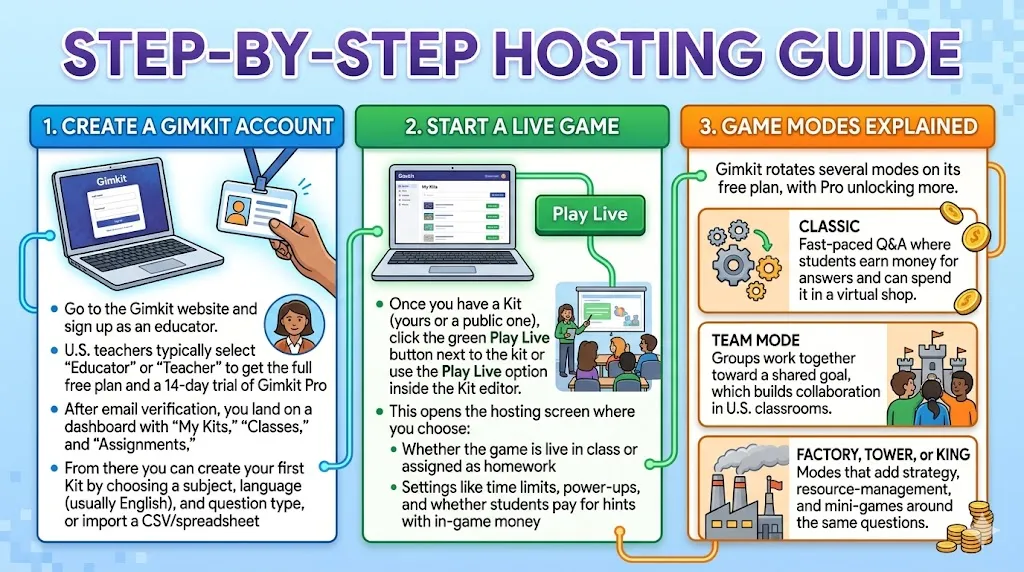
Step‑By‑Step Hosting Guide
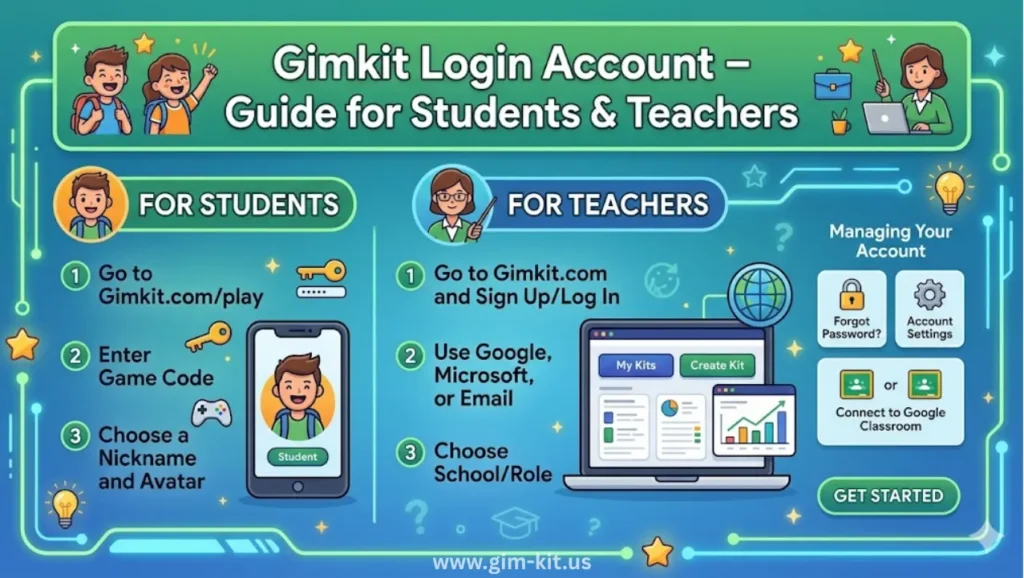
Create a Gimkit account
Go to the Gimkit website and sign up as an educator; U.S. teachers typically select “Educator” or “Teacher” to get the full free plan and a 14‑day trial of Gimkit Pro. After email verification, you land on a dashboard with “My Kits,” “Classes,” and “Assignments.” From there you can create your first Kit by choosing a subject, language (usually English), and question type, or import a CSV/spreadsheet of existing questions if you already have a quiz bank.
Start a live game
Once you have a Kit (yours or a public one), click the green Play Live button next to the kit or use the Play Live option inside the Kit editor. This opens the hosting screen where you choose:
- Whether the game is live in class or assigned as homework.
- Settings like time limits, power‑ups, and whether students pay for hints with in‑game money.
Game modes explained
Gimkit rotates several modes on its free plan, with Pro unlocking more. Common modes include:
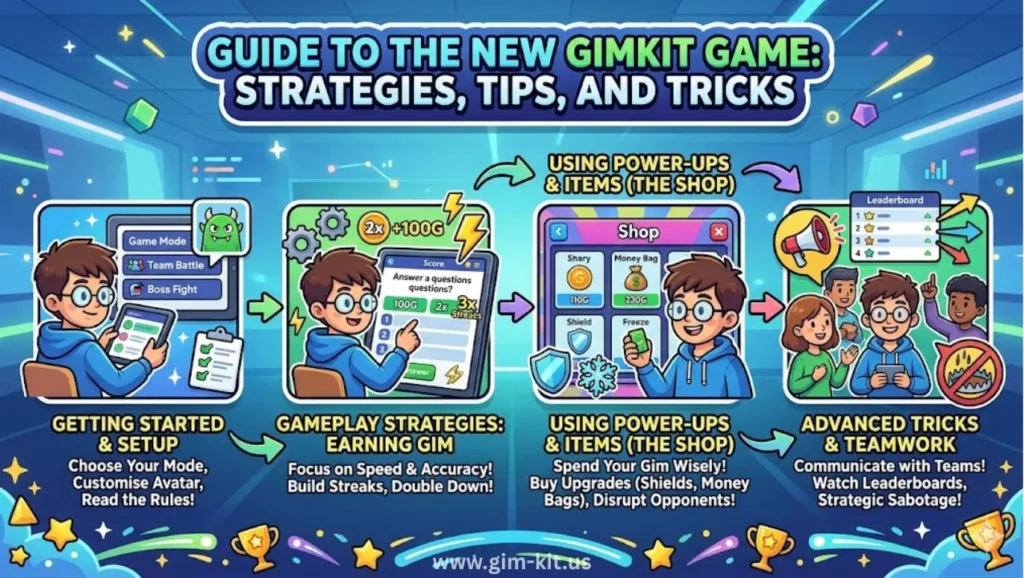
- Classic: Fast‑paced Q&A where students earn money for correct answers and can spend it in a virtual shop.
- Team Mode: Groups work together toward a shared goal, which builds collaboration in U.S. classrooms.
- Factory, Tower, or King: Modes that add strategy, resource‑management, and mini‑games around the same questions.
Sharing the game and using media
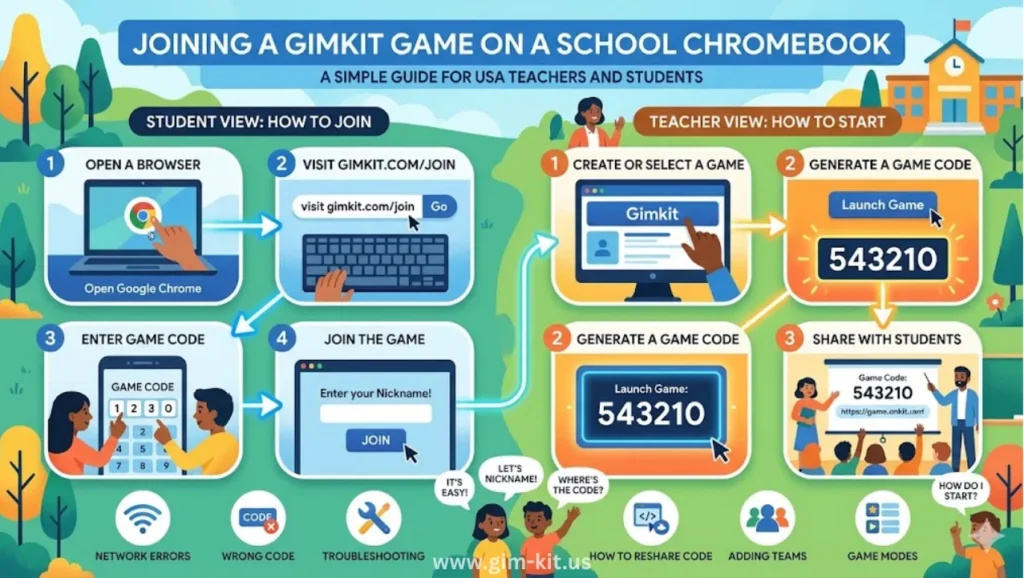
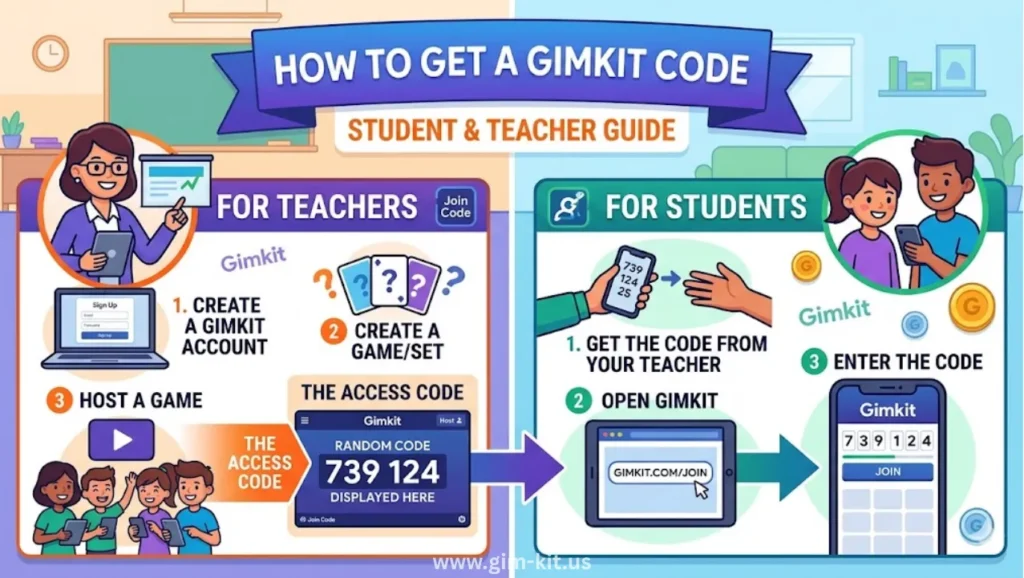
On the host screen, Gimkit generates a game code and/or a join link. You can share this via Google Classroom, email, or a projected screen; students simply go to gimkit.com/join, enter the code, and play. For clearer instruction, embed a short tutorial video (many step‑by‑step “host a Gimkit Games” videos are available on YouTube) or take screenshots of your own dashboard, code screen, and leaderboard to show students exactly what to expect.
Pre‑Made Quizzes & Templates
Gimkit lets you use your own kits or thousands of public quizzes, often organized by subject and grade level. Teachers can also import Quizlet sets or CSV files to quickly turn multiple-choice banks into games.
When choosing public kits, look for clear titles, recent updates, and 10–30 questions for focused gameplay. You can edit questions, add images or audio, and adjust difficulty—for example, rewarding harder U.S. history timeline questions more than simple multiple-choice ones.
Pricing & Plan Tips
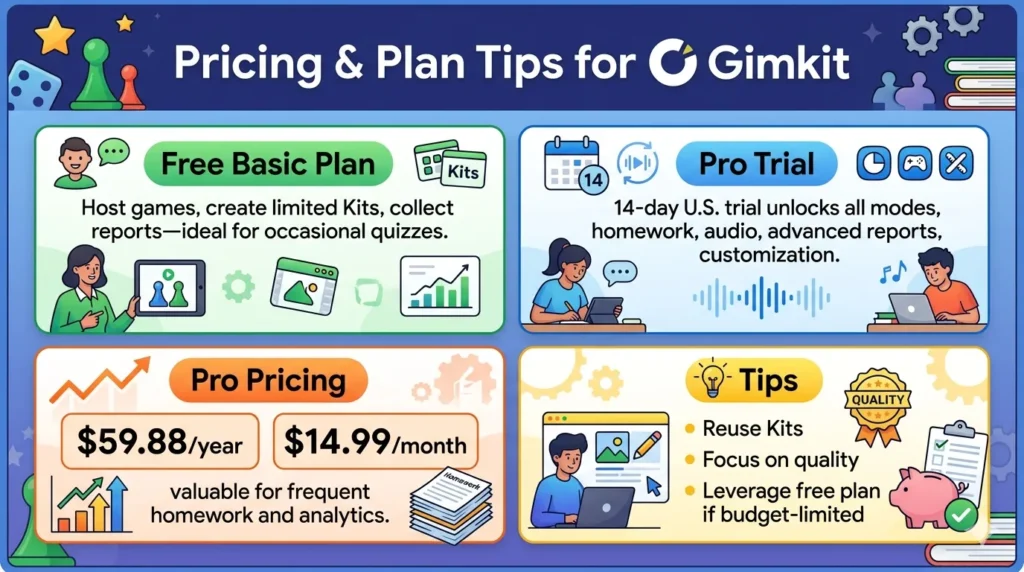
Gimkit offers a free Basic plan and a paid Pro tier. The Basic plan lets educators host games, create a limited number of Kits, and collect game reports, which is enough for occasional live quizzes.
New educator accounts in the U.S. usually get a 14‑day free trial of Gimkits Pro, which unlocks all game modes, homework assignments, audio uploads, more advanced reporting, and deeper customization.
Gimkit Pro is typically billed around $59.88 per year or about $14.99 per month, making it relatively affordable for individual teachers or small departments.
However, many U.S. teachers maximize the free plan by focusing on a few high‑quality Kits, reusing public quizzes, and avoiding the need for every advanced feature.
If your school budgets for ed‑tech, you can argue that Pro is worth it for regular homework‑style quizzes and richer analytics on student performance.
Engagement Tricks
Gamification is where Gim kit really shines. Instead of just “quiz review,” students earn in‑game money, upgrade their shops, and unlock power‑ups, which makes even low‑stakes review feel like a mini‑economy. In U.S. classrooms, teachers often start students with a small amount of in‑game cash (e.g., $50) so they can use hint power‑ups early, then gradually increase the reward for harder questions to keep them striving.
Leaderboards and incentives
The live leaderboard is a core hook: students can see their rank tick up in real time, which motivates competitive classes. You can amplify this by tying the top three ranks to small rewards such as homework passes, bonus points, or shout‑outs, but keep the focus on effort so even middle‑rankers feel recognized.
Fun challenges
Add short “quests” such as “Get 100 correct answers in 5 minutes” or “Collect $10,000 before the timer ends” to create secondary goals layered on top of the standard quiz. U.S. educators also host team‑only games, where groups must collaborate to reach a shared money target, blending review with group‑work skills. Another tricks is to let students watch the game from the host screen once, then discuss the most‑missed questions afterward, turning the game into a quick formative assessment.
Troubleshooting Common Issues
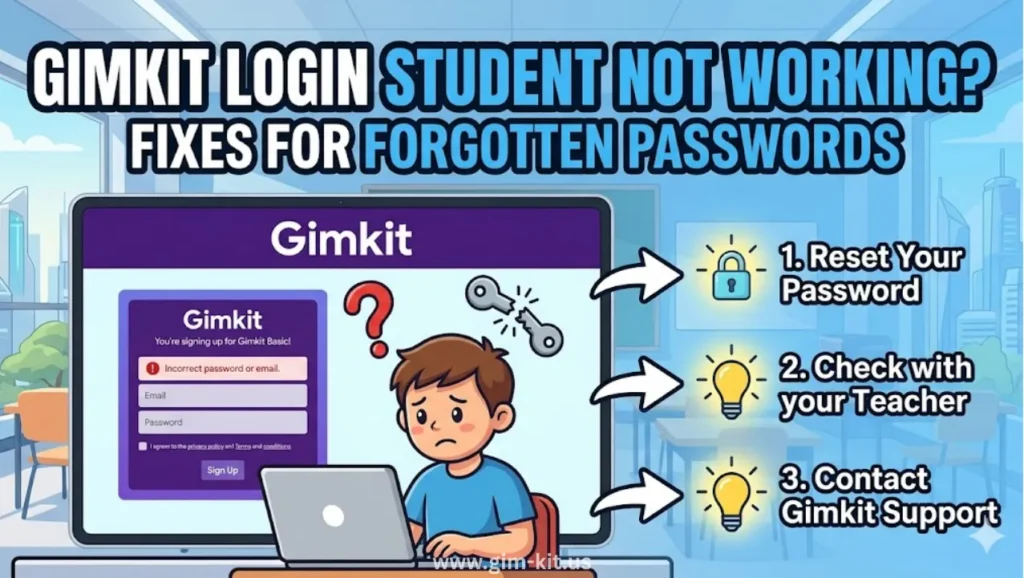
Login or hosting problems are the most frequent issues. If students can’t log in or join the game, first check that they are using the correct code (not case‑sensitive) and that the host game hasn’t ended or expired. Sometimes browsers or devices with strict pop‑up blockers prevent the game from loading; switching to Chrome or allowing pop‑ups usually resolves this.
If the green Play Live button does not appear, confirm that you are signed into the correct account and have at least one Kit (either your own or a public one you’ve added). Game‑mode availability can also confuse hosts: the free plan includes only a rotating set of modes, while Pro unlocks all; if a mode you expect isn’t visible, check your account type in the settings.
Feature limitations on the free plan include a cap on the number of Kits you can create and edit, plus fewer advanced reporting views. A useful workaround is to reuse and tweak high‑performing Kits instead of creating many one‑offs, which keeps you within the free limits while still varying content.
FAQs
How do I host a Gimkit game online?
Sign in to Gimkit, choose or create a Kit, click Play Live, set game options, and share the generated code or join link with students so they visit gimkit.com/join and enter it.
What is Gimkit?
Gimkit turns quizzes into engaging games where players earn virtual cash for correct answers to buy power-ups. It’s ideal for classrooms, blending education with competition.
Can I use Gimkit for free?
Yes; Gimkit offers a robust free Basic plan for educators that lets you host live games, create several Kits, and run the game in class, though some advanced modes and features are reserved for the paid Pro tier.
What is a Gimkit Host?
A Gimkit host manages live games by selecting kits, setting modes, customizing rules, and starting sessions for up to 500 players. They control pacing and provide real-time oversight.
What are the best ways to keep students engaged?
Use rotating game modes, in‑game money and power‑ups, visible leaderboards, and short challenges or team‑play formats so review feels like a game rather than a quiz.
How Do I Join Gimkit?
Go to gimkit.com/join, enter the 6-digit game code or scan QR from the host’s screen, add your name or nickname, and you’re in—no account needed for basic play.
Can a Student Host a Game?
Yes, students can host games if they create a free account, build or select a kit, and generate a join code. Anyone can host, not just teachers.